Regedit Commander
A native Win32 registry editor for power-user workflows that exceed the scope of the stock Windows regedit.
Download Latest Release
Platforms: Windows x86, x64 and native ARM64 — all three executables are in the archive
Build type: Native C/C++, WinAPI, no runtime redistributable
Status: Pre-release — actively developed, shared for testing
The ARM64 build is a real native binary, not the x64 image running under emulation, so it runs at full speed on Snapdragon-class hardware. Each architecture ships as a single self-contained .exe: there is no installer, and nothing is written outside the one registry key the editor uses for its own settings.
Note: Source code is not published yet. Core features are stable; active work continues on the live monitor engine and protected-hive diagnostics.
Overview
Building advanced Windows system tooling is mostly an engineering discipline problem, not a UI problem. Regedit Commander focuses on practical workflows: faster navigation, safer bulk edits, dual-pane comparison, and deeper access to protected registry areas — without visual gimmicks.
Features
1. Dual-Pane, Keyboard-First Architecture
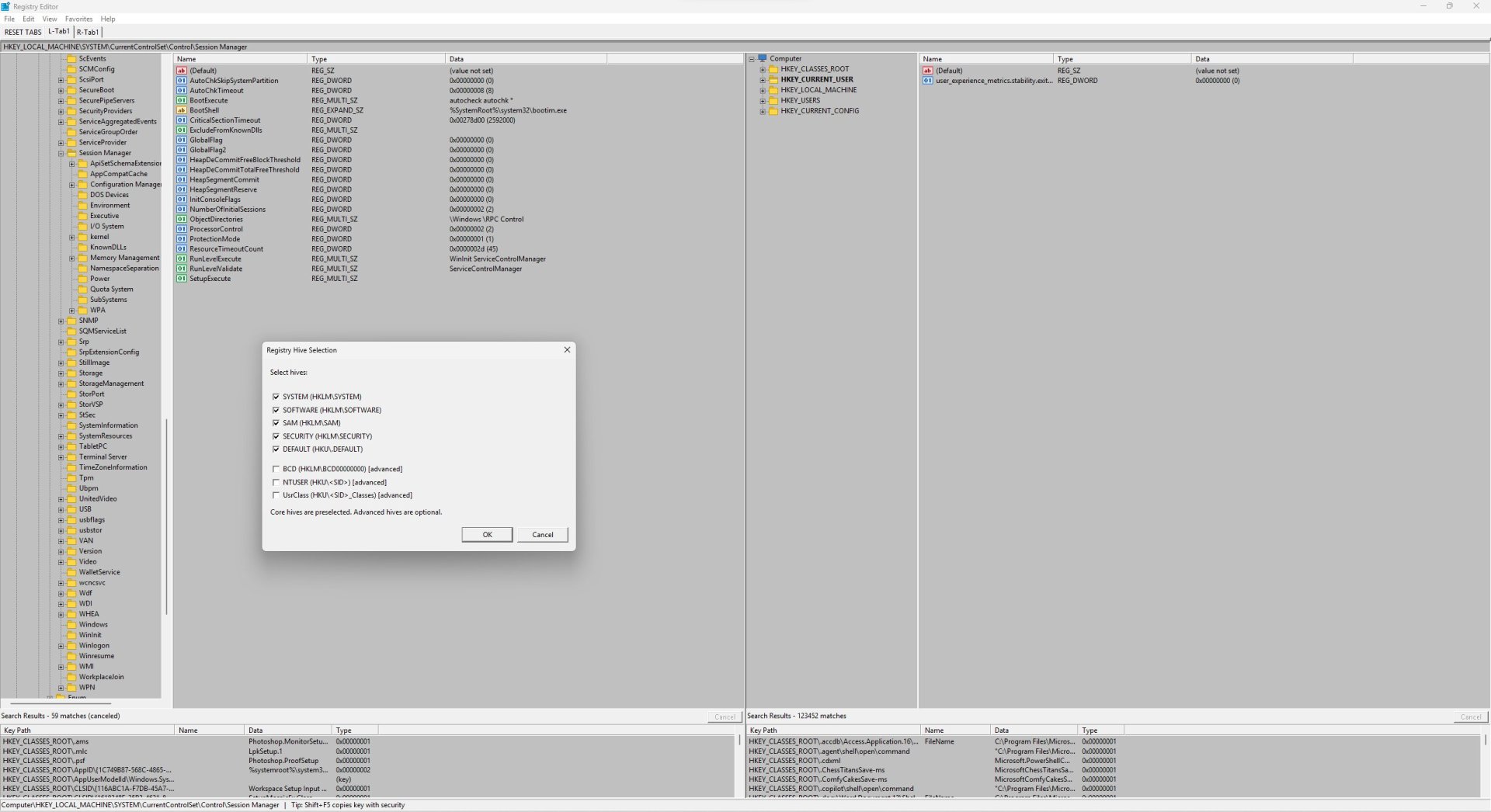
The editor opens in single-pane mode by default. Press F10 to toggle the dual-pane layout, which gives you independent left and right panels, each with its own key tree, value list, and search results pane at the bottom.
Tab and Ctrl+Tab do different things, and the difference is what makes two panels fast to work with:
Tab jumps to the matching control in the other panel — tree to tree, list to list — so you can compare the same position on both sides without losing your place. Ctrl+Tab cycles tree and value list inside the panel you are already in. In single-pane mode both collapse to the same thing: they toggle tree and list. The focus routing knows whether the results pane is visible, so navigation always lands somewhere predictable.
Each panel supports multiple tabs (Ctrl+T to open, Ctrl+W to close). Tab state, including the active key path for each tab, is persisted between sessions. The RESET TABS entry on the tab bar returns to the default L-Tab1 + R-Tab1 pair — it resets tabs only.
View → Reset Layout puts the geometry back to what a first run would give you, in one step: the second pane comes back if it was switched off, the divider between the two panes returns to the middle, both trees return to 2.25 inches, and the Name, Type and Data columns return to 1.25, 1.25 and 3 inches in both panes. Widths are measured against the monitor the window is actually on, so a window on a second screen at a different scale is reset to that screen’s proportions rather than the primary one’s. Tabs are deliberately left alone — that is what RESET TABS is for.
Cross-panel operations:
| Key | Action |
|---|---|
F10 |
Toggle dual-pane layout on/off |
Tab |
Same control in the other panel |
Ctrl+Tab |
Tree / value list within the active panel |
Ctrl+Shift+Tab |
Tree / value list (reverse direction) |
F5 |
Copy selected key or value to the other panel |
Shift+F5 |
Copy with full security descriptor (ACL, owner, SACL) |
F6 |
Move selected key or value to the other panel |
Ctrl+T |
New tab in active panel |
Ctrl+W |
Close active tab |
Copy and move refuse to run when the destination is the source key itself or one of its own descendants, so a mis-aimed drop cannot start copying a branch into itself.
2. TrustedInstaller-Aware Access Model
Standard regedit running as Administrator cannot fully access certain protected branches: SAM, SECURITY, BCD, and other SYSTEM-owned keys. Regedit Commander implements a TrustedInstaller token acquisition path that opens the TrustedInstaller service process, duplicates its impersonation token, and applies it to the thread context before performing protected operations.
The privilege flow is not applied globally — it is scoped to the operations that need it, and the original token context is restored afterwards. Background threads that need it, such as the Find All workers and the live monitor, pick the impersonation up explicitly rather than inheriting it by accident.
One consequence of impersonation is easy to get wrong, and is handled deliberately. While the thread runs as TrustedInstaller, HKEY_CURRENT_USER no longer means you — it resolves to the TrustedInstaller service profile. Every open and create goes through a wrapper that redirects it back:
Without that redirect, favourites, window layout and newly created keys would silently land in a service account. With it, they land in your profile whether or not elevation is active.
This means you can navigate, read, and back up keys like HKLM\SAM, HKLM\SECURITY, and BCD00000000 (mapped as BCD) without manually hacking token permissions or reaching for external tools.
3. Hive-Level Backup and Restore Engine
This is not .reg file export/import. The backup engine uses the native RegSaveKey / RegLoadKey / RegReplaceKey API path, which operates on raw hive files — the same format Windows uses internally.
Backup. Select the hive set you want (SYSTEM, SOFTWARE, SAM, SECURITY, NTUSER.DAT, BCD, and so on) and choose a base output folder. The engine creates a timestamped subfolder named Registry_Backup_YYYYMMDD_HHMMSS and writes each selected hive into it as a binary hive file, using SeBackupPrivilege and TrustedInstaller context where required.
Restore. This is the part worth understanding before you use it, because nothing changes at the moment you click it:
The replacement is scheduled at the kernel level and takes effect on the next boot; the previous hive is retained as .BAK until the new one is confirmed. After successful scheduling, the tool offers an immediate reboot. Restore folder history is saved in the application settings, so frequently used backup locations appear in a dropdown.
| Key / Menu | Action |
|---|---|
| Menu: Backup | Select hives and destination folder, run backup |
| Menu: Restore | Select backup folder and hive set, schedule restore |
4. Import and Export
The export dialog offers four output formats, picked from the file type dropdown:
| Dropdown entry | What it writes | Re-importable |
|---|---|---|
Registration Files .reg |
UTF-16 text, Windows Registry Editor Version 5.00 |
Yes — the default |
| Registry Hive Files | Binary hive via RegSaveKey, the format Windows uses internally |
Yes, see below |
Text Files .txt |
UTF-16 human-readable listing | No, it is a report |
Win9x/NT4 Registration Files .reg |
ANSI text, REGEDIT4 header |
Yes |
The .reg exporter is recursive and handles the awkward corners of the format rather than quietly losing them: a value whose name is literally @ stays distinct from the key's default value, key names containing brackets or equals signs survive, values with no terminator or with an odd byte count are written as hex(1) so the bytes come back exactly, and REG_MULTI_SZ, REG_QWORD and REG_DWORD_BIG_ENDIAN all keep their type.
In the ANSI REGEDIT4 format, string data that has to be written as hex goes through the active code page, so text outside ASCII survives an export and re-import instead of arriving back as control characters.
Import reads version 5, REGEDIT4 and the older 3.x layouts, detecting the encoding from the file header. Handed a binary hive file instead, it asks for confirmation and then replaces the currently selected key with the file's contents through RegRestoreKey — so a hive export is a way to snapshot one branch and put it back later, without going through the full backup engine.
5. Search, Find All, and Replace
Find / Find Next (Ctrl+F / F3) searches key names, value names and value data, each toggled independently. Three things are worth knowing:
*and?wildcards are supported.*matches any run of characters,?matches exactly one.- Match whole string only decides whether the pattern must describe the entire text or may be found anywhere inside it, and it governs wildcard patterns exactly as it governs plain text. With the option off,
*.dllfindsC:\lib\a.dll extra, andmicro?oftfindsa microsoft office. - Match case applies to key names, value names and value data alike, and works through the wildcard path as well as the plain one. It is off by default, and both options are remembered between sessions.
Match case also takes the search off its own fast path. An exact, wildcard-free value name is normally looked up directly instead of enumerating the key, but registry lookup is case insensitive — so a case sensitive search enumerates instead, rather than answering for a name you did not ask for and reporting it with the spelling from the search box.
Wildcard matching runs in linear time with no backtracking, so a pathological pattern such as *a*a*a*a*a*a*a*a*b cannot hang the search.
Find All (Ctrl+Shift+F) runs across the whole registry in the background:
Results appear in the dedicated Search Results pane at the bottom of the active panel; in dual-pane mode each panel has its own. The UI stays responsive while results stream in. Cancellation is checked per key and per value, so Esc stops the scan promptly rather than at the end of the current branch. Registry links are opened as links, so a scan never wanders outside the branch it was given.
Right-clicking the results list offers: copy as TSV to the clipboard, export to CSV as UTF-8 with BOM, export to text as UTF-8 or UTF-16, select all, and delete the selected registry entries straight from the results.
Replace (Ctrl+H) targets value names, value data, or both, with match case, match whole string, and a regex mode using ECMAScript semantics including capture group references in the replacement.
The preview is not optional — and it applies to a single replace just as much as to Replace All:
You see every value name rename and every data edit with its replacement count before a single byte is written. Nothing is committed until you confirm that list.
Literal, non-regex replacement uses Knuth–Morris–Pratt, so its cost is linear in the length of the input rather than quadratic: a four-million-character value with an adversarial pattern is processed in about 15 ms.
| Key | Action |
|---|---|
Ctrl+F |
Find |
Ctrl+Shift+F |
Find All (background, results pane) |
F3 |
Find Next |
Esc |
Cancel a running Find All |
Ctrl+H |
Replace (with mandatory preview) |
6. Diff and Live Monitor
Compare Keys — with dual-pane open, navigate to a key on the left and a different key on the right, then invoke compare. The value list uses custom-draw rendering to highlight differences:
- Values present only in the left key are marked as left-only
- Values present only in the right key are marked as right-only
- Values present in both but with different data or type are marked as changed
The diff table is built by enumerating both keys, sorting by name, and running a merge-compare pass. Type mismatches count as changes regardless of data, and each value is read in full, so two values differing only past the first few kilobytes are still reported. The table is rebuilt automatically whenever the selection in either panel changes.
Live Monitor (Ctrl+M) opens a separate monitor window for the selected key. It is not a polling loop — the thread sleeps on an event and consumes no CPU while nothing happens:
Re-arming happens before the scan, so changes made during a snapshot stay pending instead of being missed. Bursts are coalesced rather than logged one at a time, and the sampling interval adapts to how expensive the key is, holding the worker at roughly a fifth of one core even under a flood of writes. Stopping is immediate. Snapshots are capped at 4096 values, 4096 subkeys and 16 MB per key, and the log is trimmed once it passes 200,000 characters, so neither can grow without bound.
| Key | Action |
|---|---|
Ctrl+M |
Open Live Monitor for selected key |
7. Undo/Redo and Binary Editing
Undo history is off by default. Enable it from Edit → Enable Undo History; the setting is remembered between sessions. Once on, value writes, deletions, renames and recursive key deletions are recorded, and Ctrl+Z / Ctrl+Y step through up to 64 levels in each direction.
Deleting a key is the case that matters most, because there is nothing to fall back on if it goes wrong:
The snapshot is taken in memory before anything is removed, so volatile subkeys come back too — a hive-file snapshot would silently drop them, because RegSaveKey does not write volatile keys. Starting a new edit discards the redo chain, as expected.
Binary / Hex editor — double-clicking a REG_BINARY value opens a built-in hex editor modeled after HxD-style interaction: byte-level cursor navigation, offset display, ASCII pane, and direct editing. For non-destructive inspection of any value's raw bytes, a separate Display Binary Data path in the context menu opens a read-only hex view without entering edit mode.
| Key | Action |
|---|---|
Ctrl+Z |
Undo |
Ctrl+Y |
Redo |
8. Other Operations
| Key | Action |
|---|---|
F7 |
Create new key |
F2 |
Rename key or value |
Delete |
Delete selected key or value |
Shift+Delete |
Delete without the confirmation prompt |
Ctrl+R |
Refresh current view |
Ctrl+C / Ctrl+V |
Copy / paste keys and values |
Ctrl+L |
Jump to the address bar |
Ctrl+P |
Print the selected branch |
The address bar accepts a full key path and navigates straight to it. Favourites (Favorites → Add to Favorites) bookmark the current key. Connect Network Registry opens a remote machine's registry in the tree, and Permissions opens the standard ACL editor for the selected key, including the owner and auditing pages.
Keyboard Reference
| Key | Action |
|---|---|
F1 |
Help topics |
F2 |
Rename |
F3 |
Find Next |
F5 |
Copy to other panel |
Shift+F5 |
Copy with security descriptor |
F6 |
Move to other panel |
F7 |
New key |
F10 |
Toggle dual-pane layout |
Shift+F10 |
Context menu |
Tab |
Same control in the other panel |
Ctrl+Tab |
Tree / value list within the panel |
Ctrl+Shift+Tab |
Tree / value list (reverse) |
Delete |
Delete |
Shift+Delete |
Delete without confirmation |
Esc |
Cancel a running Find All |
Ctrl+F |
Find |
Ctrl+Shift+F |
Find All |
Ctrl+H |
Replace (with preview) |
Ctrl+T |
New tab |
Ctrl+W |
Close tab |
Ctrl+M |
Live Monitor |
Ctrl+R |
Refresh |
Ctrl+C |
Copy |
Ctrl+V |
Paste |
Ctrl+P |
|
Ctrl+L |
Focus address bar |
Ctrl+Z |
Undo |
Ctrl+Y |
Redo |
Requirements
- Windows 10 or Windows 11 — x86, x64 or ARM64
- The binaries also declare compatibility back to Windows 7, but current testing is on Windows 10 and 11
- Administrator privileges required for protected-hive operations
- No external dependencies, no installer — one executable per architecture
Important Notes
- Backup, restore, and TrustedInstaller operations are powerful. Test on a VM before using them on a production system.
- The restore mechanism schedules hive replacement via
RegReplaceKey; changes take effect after reboot. RegSaveKey, which the hive backup relies on, does not write volatile keys — anything under a volatile branch is not part of a hive backup. That is a property of the Windows API, not of this tool. The in-memory undo snapshot does cover them.- Behavior may differ across Windows builds. Bug reports with Windows version and exact reproduction steps are very welcome.
- The BCD hive is mapped as
BCD(restored fromBCD00000000).
License
This software is provided for personal and home use only.
- You may use this software on your own personal computers for non-commercial purposes.
- You may not redistribute, sublicense, sell, or incorporate this software into any commercial product or service.
- You may not reverse engineer or modify the software.
- Source code is not provided and remains proprietary.
Copyright (C) 2026 Marek Wesolowski (wesmar). All rights reserved.
Feedback
This is a pre-release build. If something breaks — especially around restore scheduling, TrustedInstaller token handling, or monitor behavior on specific Windows builds — please open an issue with your Windows version, build number, and steps to reproduce.
Add a comment